文章詳情頁
Win10怎么把所有哈希值校驗(yàn)算法添加到文件右鍵層疊菜單中?
瀏覽:181日期:2022-10-10 15:25:18
Win10怎么把所有哈希值校驗(yàn)算法添加到文件右鍵層疊菜單中?此前小編給大家介紹了《Win10如何在文件右鍵菜單中添加哈希值校驗(yàn)選項(xiàng)?》,然而很多用戶反饋能否將所有哈希值校驗(yàn)算法添加到文件右鍵菜單中,最好是層疊菜單。辦法當(dāng)然是有啦,同樣需要制作一個(gè)注冊表文件添加到注冊表中,下面我們來看看具體的操作方法。
Win10怎么把所有哈希值校驗(yàn)算法添加到文件右鍵層疊菜單中?
1、把下面的內(nèi)容復(fù)制到記事本中:
01Windows Registry Editor Version 5.0002[HKEY_CLASSES_ROOT*shell文件哈希校驗(yàn)]03"SubCommands"="MACTripleDES;MD5;RIPEMD160;SHA1;SHA256;SHA384;SHA512"04"MUIVerb"="文件哈希校驗(yàn)"05[HKEY_LOCAL_MACHINESOFTWAREMicrosoftWindowsCurrentVersionExplorerCommandStoreshellMACTripleDES]06@="MACTripleDES"07[HKEY_LOCAL_MACHINESOFTWAREMicrosoftWindowsCurrentVersionExplorerCommandStoreshellMACTripleDEScommand]08@="PowerShell Get-FileHash -Algorithm MACTripleDES "%1" | format-list;“按任意鍵退出...”;[Console]::Readkey() | Out-Null;exit"09[HKEY_LOCAL_MACHINESOFTWAREMicrosoftWindowsCurrentVersionExplorerCommandStoreshellMD5]10@="MD5"11[HKEY_LOCAL_MACHINESOFTWAREMicrosoftWindowsCurrentVersionExplorerCommandStoreshellMD5command]12@="PowerShell Get-FileHash -Algorithm MD5 "%1" | format-list;“按任意鍵退出...”;[Console]::Readkey() | Out-Null;exit"13[HKEY_LOCAL_MACHINESOFTWAREMicrosoftWindowsCurrentVersionExplorerCommandStoreshellRIPEMD160]14@="RIPEMD160"15[HKEY_LOCAL_MACHINESOFTWAREMicrosoftWindowsCurrentVersionExplorerCommandStoreshellRIPEMD160command]16@="PowerShell Get-FileHash -Algorithm RIPEMD160 "%1" | format-list;“按任意鍵退出...”;[Console]::Readkey() | Out-Null;exit"17[HKEY_LOCAL_MACHINESOFTWAREMicrosoftWindowsCurrentVersionExplorerCommandStoreshellSHA1]18@="SHA1"19[HKEY_LOCAL_MACHINESOFTWAREMicrosoftWindowsCurrentVersionExplorerCommandStoreshellSHA1command]20@="PowerShell Get-FileHash -Algorithm SHA1 "%1" | format-list;“按任意鍵退出...”;[Console]::Readkey() | Out-Null;exit"21[HKEY_LOCAL_MACHINESOFTWAREMicrosoftWindowsCurrentVersionExplorerCommandStoreshellSHA256]22@="SHA256"23[HKEY_LOCAL_MACHINESOFTWAREMicrosoftWindowsCurrentVersionExplorerCommandStoreshellSHA256command]24@="PowerShell Get-FileHash -Algorithm SHA256 "%1" | format-list;“按任意鍵退出...”;[Console]::Readkey() | Out-Null;exit"25[HKEY_LOCAL_MACHINESOFTWAREMicrosoftWindowsCurrentVersionExplorerCommandStoreshellSHA384]26@="SHA384"27[HKEY_LOCAL_MACHINESOFTWAREMicrosoftWindowsCurrentVersionExplorerCommandStoreshellSHA384command]28@="PowerShell Get-FileHash -Algorithm SHA384 "%1" | format-list;“按任意鍵退出...”;[Console]::Readkey() | Out-Null;exit"29[HKEY_LOCAL_MACHINESOFTWAREMicrosoftWindowsCurrentVersionExplorerCommandStoreshellSHA512]30@="SHA512"31[HKEY_LOCAL_MACHINESOFTWAREMicrosoftWindowsCurrentVersionExplorerCommandStoreshellSHA512command]32@="PowerShell Get-FileHash -Algorithm SHA512 "%1" | format-list;“按任意鍵退出...”;[Console]::Readkey() | Out-Null;exit"復(fù)制代碼Windows Registry Editor Version 5.00[HKEY_CLASSES_ROOT*shell文件哈希校驗(yàn)]"SubCommands"="MACTripleDES;MD5;RIPEMD160;SHA1;SHA256;SHA384;SHA512""MUIVerb"="文件哈希校驗(yàn)"[HKEY_LOCAL_MACHINESOFTWAREMicrosoftWindowsCurrentVersionExplorerCommandStoreshellMACTripleDES]@="MACTripleDES"[HKEY_LOCAL_MACHINESOFTWAREMicrosoftWindowsCurrentVersionExplorerCommandStoreshellMACTripleDEScommand]@="PowerShell Get-FileHash -Algorithm MACTripleDES "%1" | format-list;“按任意鍵退出...”;[Console]::Readkey() | Out-Null;exit"[HKEY_LOCAL_MACHINESOFTWAREMicrosoftWindowsCurrentVersionExplorerCommandStoreshellMD5]@="MD5"[HKEY_LOCAL_MACHINESOFTWAREMicrosoftWindowsCurrentVersionExplorerCommandStoreshellMD5command]@="PowerShell Get-FileHash -Algorithm MD5 "%1" | format-list;“按任意鍵退出...”;[Console]::Readkey() | Out-Null;exit"[HKEY_LOCAL_MACHINESOFTWAREMicrosoftWindowsCurrentVersionExplorerCommandStoreshellRIPEMD160]@="RIPEMD160"[HKEY_LOCAL_MACHINESOFTWAREMicrosoftWindowsCurrentVersionExplorerCommandStoreshellRIPEMD160command]@="PowerShell Get-FileHash -Algorithm RIPEMD160 "%1" | format-list;“按任意鍵退出...”;[Console]::Readkey() | Out-Null;exit"[HKEY_LOCAL_MACHINESOFTWAREMicrosoftWindowsCurrentVersionExplorerCommandStoreshellSHA1]@="SHA1"[HKEY_LOCAL_MACHINESOFTWAREMicrosoftWindowsCurrentVersionExplorerCommandStoreshellSHA1command]@="PowerShell Get-FileHash -Algorithm SHA1 "%1" | format-list;“按任意鍵退出...”;[Console]::Readkey() | Out-Null;exit"[HKEY_LOCAL_MACHINESOFTWAREMicrosoftWindowsCurrentVersionExplorerCommandStoreshellSHA256]@="SHA256"[HKEY_LOCAL_MACHINESOFTWAREMicrosoftWindowsCurrentVersionExplorerCommandStoreshellSHA256command]@="PowerShell Get-FileHash -Algorithm SHA256 "%1" | format-list;“按任意鍵退出...”;[Console]::Readkey() | Out-Null;exit"[HKEY_LOCAL_MACHINESOFTWAREMicrosoftWindowsCurrentVersionExplorerCommandStoreshellSHA384]@="SHA384"[HKEY_LOCAL_MACHINESOFTWAREMicrosoftWindowsCurrentVersionExplorerCommandStoreshellSHA384command]@="PowerShell Get-FileHash -Algorithm SHA384 "%1" | format-list;“按任意鍵退出...”;[Console]::Readkey() | Out-Null;exit"[HKEY_LOCAL_MACHINESOFTWAREMicrosoftWindowsCurrentVersionExplorerCommandStoreshellSHA512]@="SHA512"[HKEY_LOCAL_MACHINESOFTWAREMicrosoftWindowsCurrentVersionExplorerCommandStoreshellSHA512command]@="PowerShell Get-FileHash -Algorithm SHA512 "%1" | format-list;“按任意鍵退出...”;[Console]::Readkey() | Out-Null;exit"
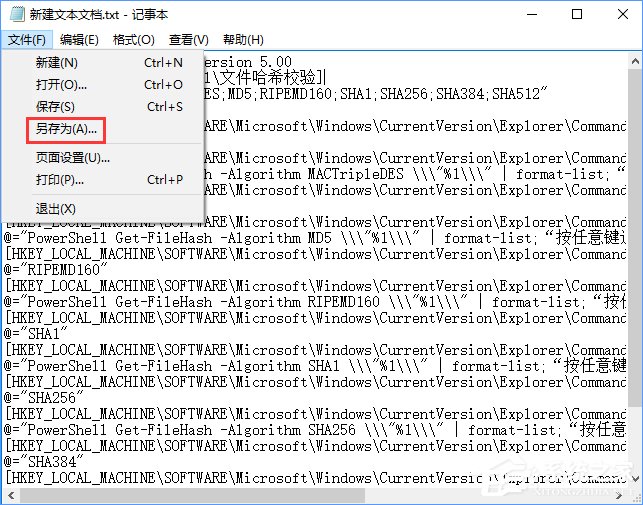
2、點(diǎn)擊記事本左上角的【文件】,在下拉菜單中點(diǎn)擊【另存為】;
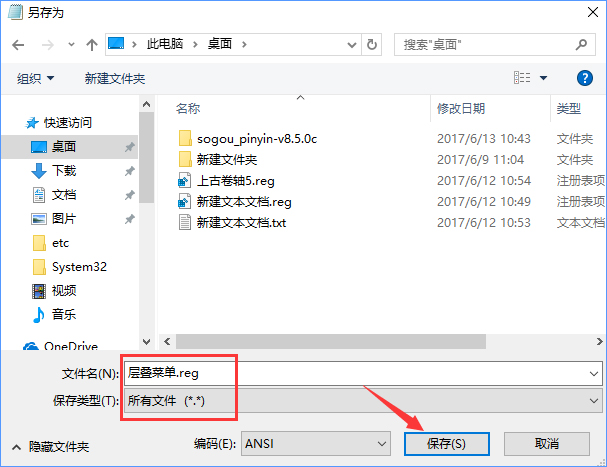
3、、在另存為窗口中,點(diǎn)擊窗口左側(cè)的【桌面】,在文件名(N)欄中輸入:層疊菜單.reg,再點(diǎn)擊:保存;
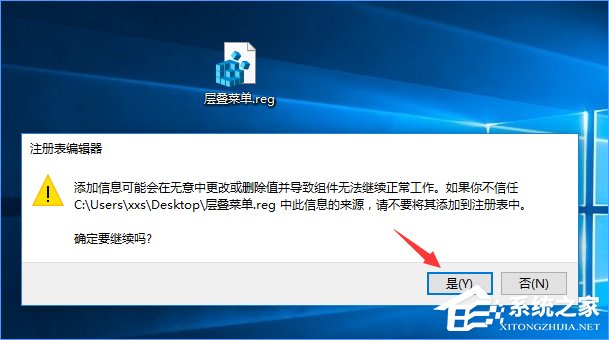
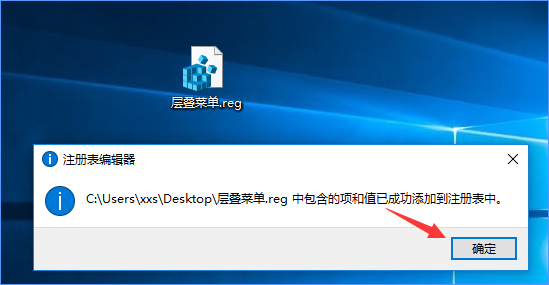
4、回到系統(tǒng)桌面,左鍵雙擊【哈希值校驗(yàn).reg】注冊表文件圖標(biāo),在彈出的注冊表編輯器對話框中先后點(diǎn)擊:是(Y)和確定;
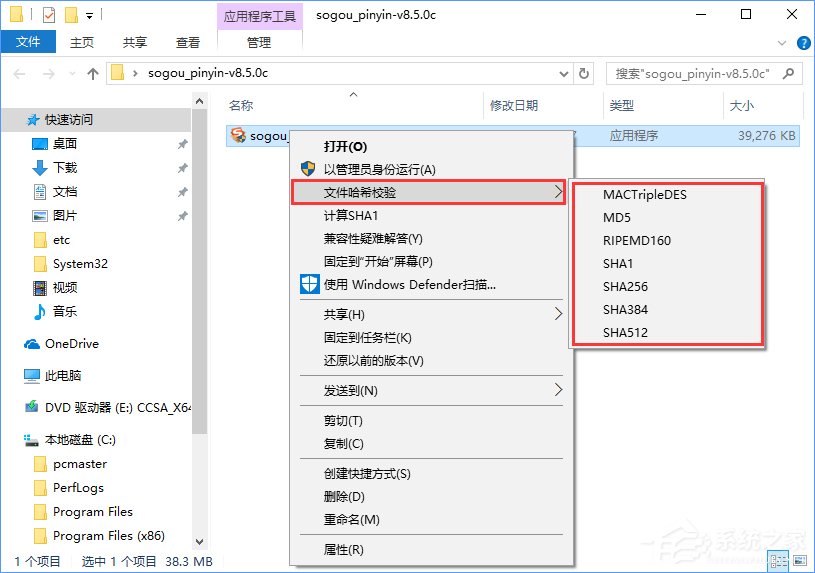
5、大功告成,獻(xiàn)上文件右鍵菜單效果圖:
6、多種哈希算法校驗(yàn)效果圖:
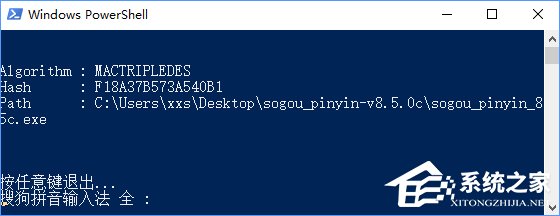
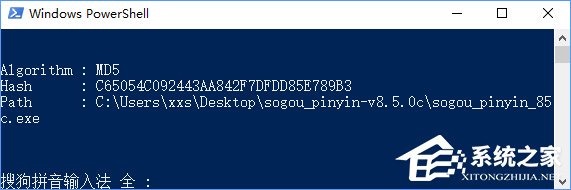
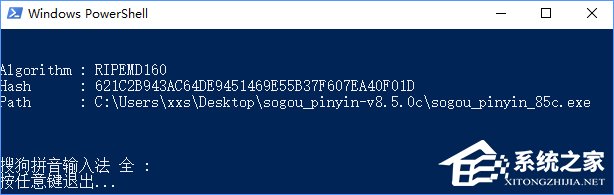
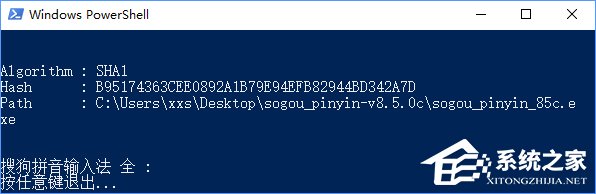
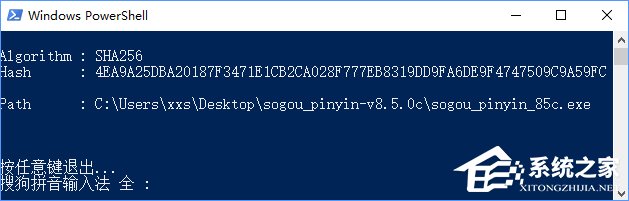
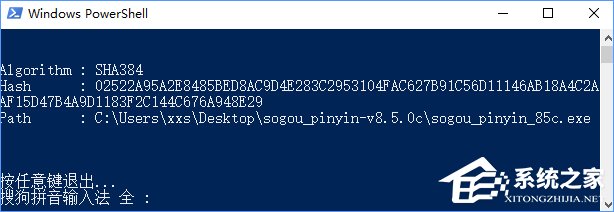
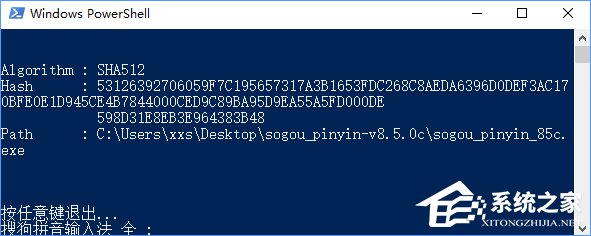
上述便是Win10在文件右鍵菜單中添加所有哈希值校驗(yàn)算法的操作教程,方法相對簡單,只需為注冊表添加一個(gè)文件即可,有需要的伙伴可以按照教程操作設(shè)置。
標(biāo)簽:
Windows系統(tǒng)
win10
相關(guān)文章:
1. Win10如何屏蔽更新?Win10屏蔽更新的詳細(xì)步驟2. mac系統(tǒng)自帶的地圖怎么避開收費(fèi)站? 蘋果地圖避開收費(fèi)站的技巧3. Windows10關(guān)閉資訊興趣推送方法介紹4. 華為matebook怎么升級win115. Win10搜索框太大怎么縮小?Win10搜索框縮小教程6. win10怎么安裝ie瀏覽器?win10安裝ie瀏覽器的方法說明7. Win7系統(tǒng)沒有Rthdcpl.exe如何解決?8. windows7下刪除IE9恢復(fù)安裝IE8瀏覽器的兩種方法9. Win7開機(jī)提示登錄進(jìn)程初始化失敗如何解決?10. 微軟Win7版IE10預(yù)發(fā)布版系統(tǒng)要求詳解
排行榜

 網(wǎng)公網(wǎng)安備