docker5 全功能harbor倉庫搭建過程
Harbor是一個用于存儲和分發Docker鏡像的企業級Registry服務器,可以用來構建企業內部的Docker鏡像倉庫。它在Docker的開源項目 Distribution的基礎上,添加了一些企業需要的功能特性,如鏡像同步復制、漏洞掃描和權限管理等。Harbor是由VMware公司開源的企業級的Docker Registry管理項目,它包括權限管理(RBAC)、LDAP、日志審核、管理界面、自我注冊、鏡像復制和中文支持等功能。
搭建一個全功能的倉庫,且支持匿名拉取
[root@server1 mnt]# cd compose/[root@server1 compose]# lsdocker-compose-Linux-x86_64-1.16.1 docker-compose-Linux-x86_64-1.24.1docker-compose-Linux-x86_64-1.22.0 docker-compose-Linux-x86_64-1.27.0[root@server1 compose]# mv docker-compose-Linux-x86_64-1.27.0 /usr/local/bin/docker-compose[root@server1 compose]# chmod +x /usr/local/bin/docker-compose
[root@server1 mnt]# tar zxf harbor-offline-installer-v1.10.1.tgz
解決依賴性,解壓harbor
vim harbor.yml
在harbor的目錄中
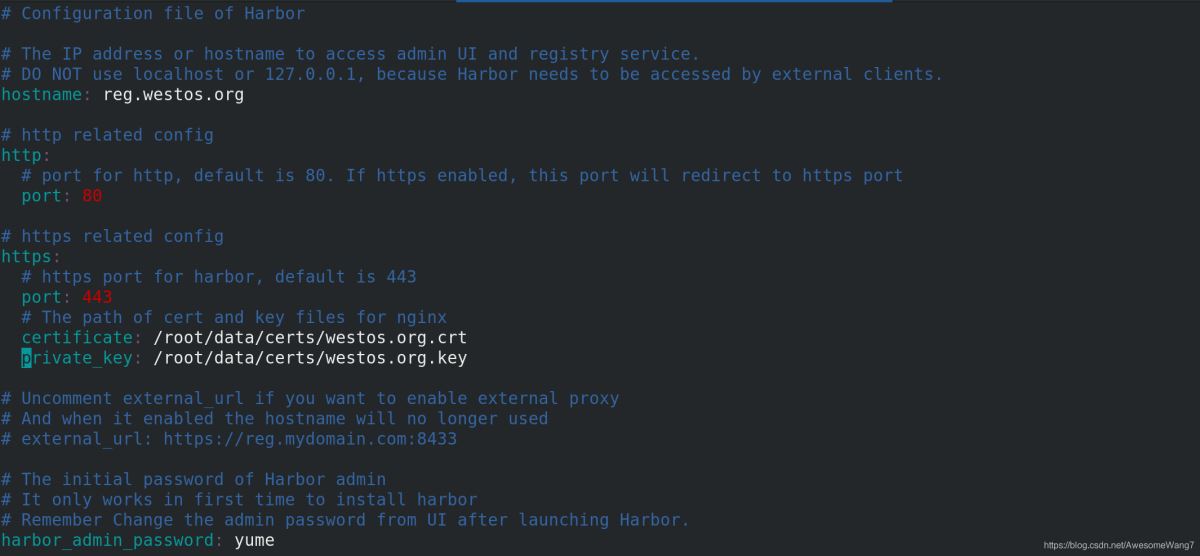
認證和密鑰的位置一定要寫對
./install.sh
執行腳本安裝
Creating redis ... doneCreating harbor-core ... doneCreating nginx ... doneCreating harbor-jobservice ... done✔ ----Harbor has been installed and started successfully.----
done
[root@server1 harbor]# docker-compose
docker-compose命令一定要在harbor目錄中執行
[root@server1 harbor]# docker-compose start
[root@server1 harbor]# docker-compose ps Name Command StatePorts --------------------------------------------------------------------------------------------------------------------------------------------harbor-core /harbor/harbor_core Up (healthy) harbor-db /docker-entrypoint.sh Up (healthy) 5432/tcp harbor-jobservice /harbor/harbor_jobservice ... Up (healthy) harbor-log /bin/sh -c /usr/local/bin/ ... Up (healthy) 127.0.0.1:1514->10514/tcp harbor-portal nginx -g daemon off; Up (healthy) 8080/tcp nginx nginx -g daemon off; Up (healthy) 0.0.0.0:80->8080/tcp,:::80->8080/tcp, 0.0.0.0:443->8443/tcp,:::443->8443/tcp redis redis-server /etc/redis.conf Up (healthy) 6379/tcp registry /home/harbor/entrypoint.sh Up (healthy) 5000/tcp registryctl /home/harbor/start.sh Up (healthy)
確保鏡像都是up的狀態直接在瀏覽器輸入IP地址
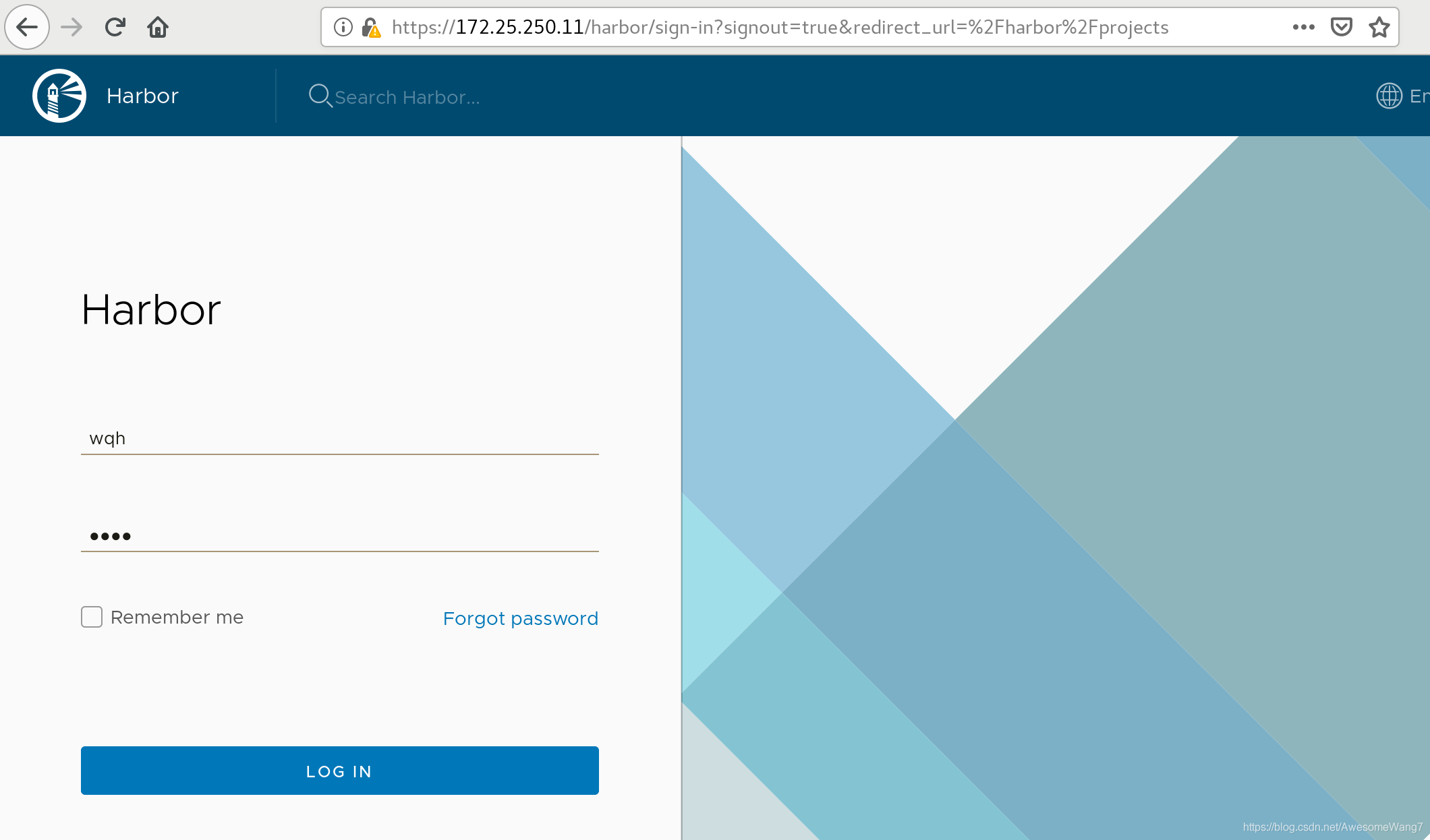
用戶admin,密碼yume
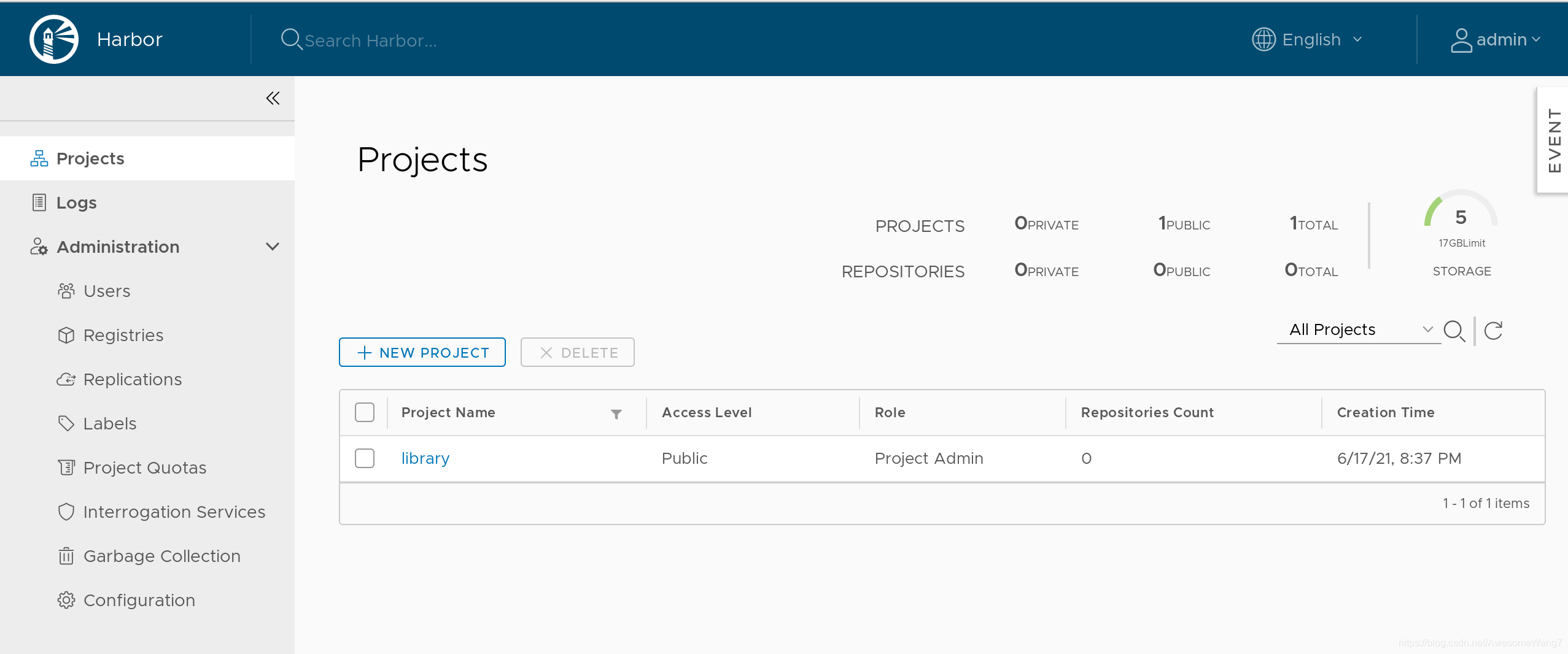
[root@server1 docker]# docker logout reg.westos.orgRemoving login credentials for reg.westos.org[root@server1 docker]# docker login reg.westos.orgUsername: adminPassword: WARNING! Your password will be stored unencrypted in /root/.docker/config.json.Configure a credential helper to remove this warning. Seehttps://docs.docker.com/engine/reference/commandline/login/#credentials-storeLogin Succeeded
退出之前的登錄,重新登錄這是在數據庫里保存的信息。并非之前自己在本地創建的
[root@server1 docker]# docker tag yakexi007/game2048:latest reg.westos.org/library/game2048:latest[root@server1 docker]# docker push reg.westos.org/library/game2048:latest The push refers to repository [reg.westos.org/library/game2048]88fca8ae768a: Pushed 6d7504772167: Pushed 192e9fad2abc: Pushed 36e9226e74f8: Pushed 011b303988d2: Pushed latest: digest: sha256:8a34fb9cb168c420604b6e5d32ca6d412cb0d533a826b313b190535c03fe9390 size: 1364
給倉庫上傳,查看
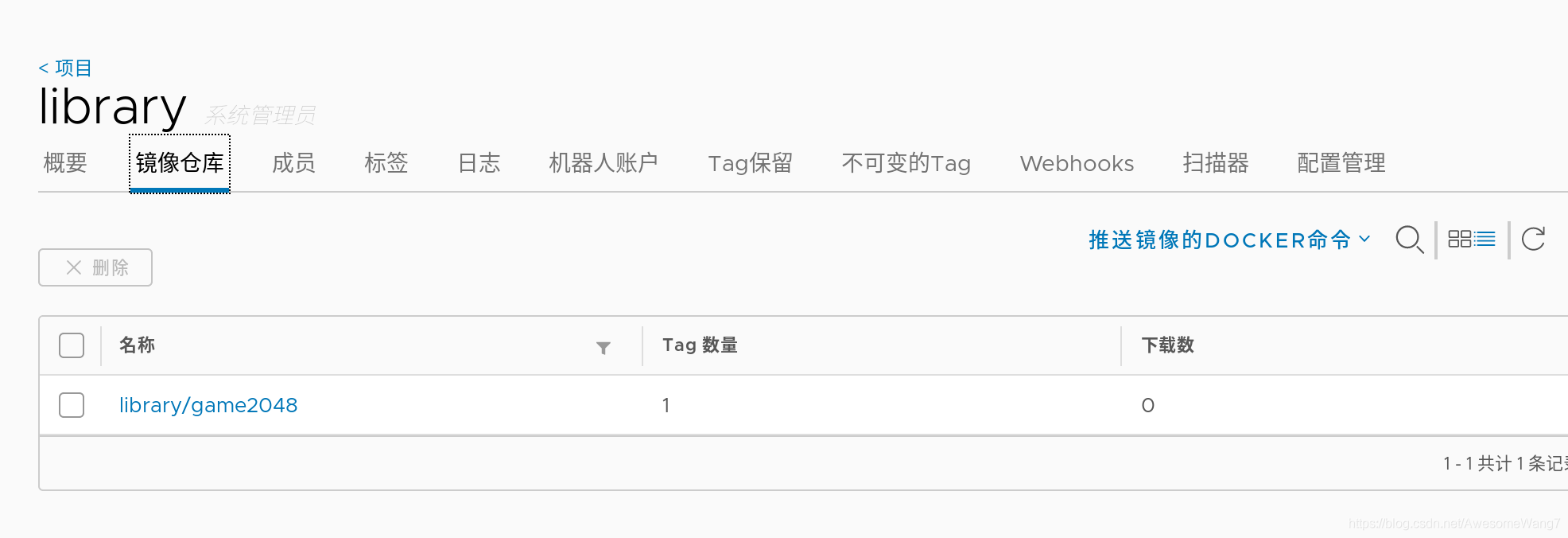
[root@server2 docker]# cat daemon.json { 'registry-mirrors': ['https://reg.westos.org']}
server2中,已經指向了私有倉庫
Registry: https://index.docker.io/v1/ Labels: Experimental: false Insecure Registries: 127.0.0.0/8 Registry Mirrors: https://reg.westos.org/ Live Restore Enabled: false
且是生效的在server2中做地址解析
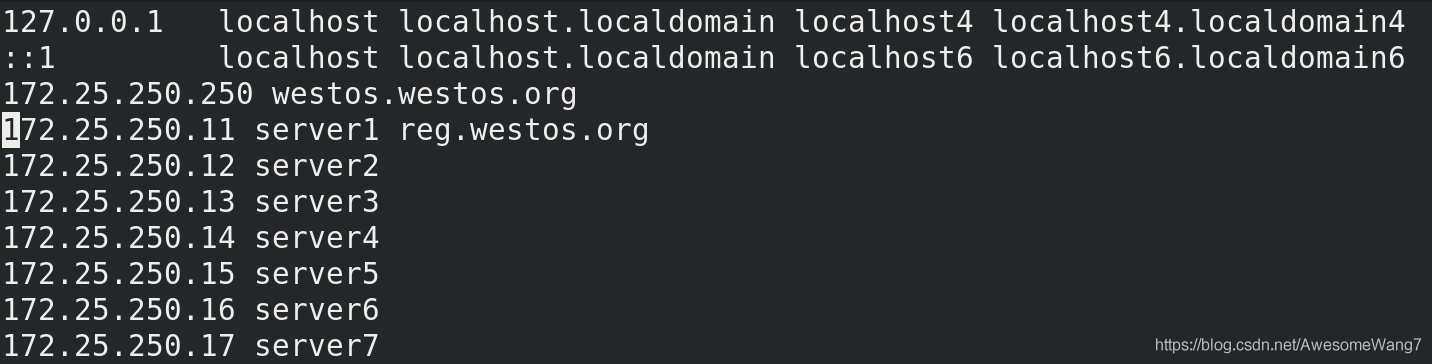
[root@server2 docker]# docker pull reg.westos.org/library/game2048:latestlatest: Pulling from library/game2048534e72e7cedc: Pull complete f62e2f6dfeef: Pull complete fe7db6293242: Pull complete 3f120f6a2bf8: Pull complete 4ba4e6930ea5: Pull complete Digest: sha256:8a34fb9cb168c420604b6e5d32ca6d412cb0d533a826b313b190535c03fe9390Status: Downloaded newer image for reg.westos.org/library/game2048:latestreg.westos.org/library/game2048:latest
把server1push出去的鏡像在server2pull下來成功
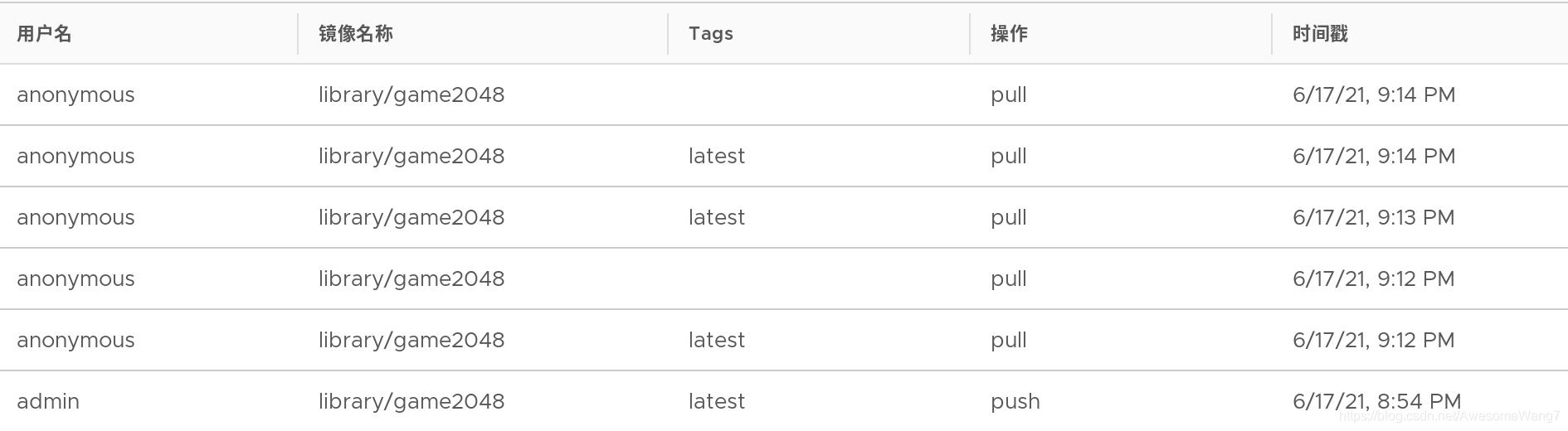
日志中可以看到,匿名用戶進行了拉取
[root@server1 docker]# docker tag yakexi007/nginx:latest reg.westos.org/library/nginx:latest[root@server1 docker]# docker push reg.westos.org/library/nginxThe push refers to repository [reg.westos.org/library/nginx]3bd8699f28ba: Pushed 1d3b68b6972f: Pushed de1602ca36c9: Pushed latest: digest: sha256:5ea5a786e978abd8e6e0b6c0f37f7271be19c40d6b8247b1d9dae70c1fbab9eb size: 949
server1中再次上傳一個nginx鏡像

可以查看到
[root@server2 docker]# docker pull nginxUsing default tag: latestlatest: Pulling from library/nginxcfb92865f5ba: Pull complete 8dd350b5e0d5: Pull complete 15157df2751c: Pull complete Digest: sha256:5ea5a786e978abd8e6e0b6c0f37f7271be19c40d6b8247b1d9dae70c1fbab9ebStatus: Downloaded newer image for nginx:latestdocker.io/library/nginx:latest
server2再次拉取nginx,done2.使用harbor倉庫,一些基本的指令
[root@server1 harbor]# docker-compose logs
查看日志
[root@server1 harbor]# docker-compose stop
停用倉庫3.維護倉庫(添加倉庫模塊:自動掃描鏡像、簽名功能)先停掉倉庫stop
[root@server1 harbor]# docker-compose rm
刪除所有的容器接下來,添加harbor的功能查看安裝腳本的help,可以看到3個模塊:鏡像漏洞掃描,內容信任,遠程登陸在安裝腳本后面加上模塊名稱,重新安裝后,會開啟這些模塊功能
[root@server1 harbor]# ./install.sh --helpNote: Please set hostname and other necessary attributes in harbor.yml first. DO NOT use localhost or 127.0.0.1 for hostname, because Harbor needs to be accessed by external clients.Please set --with-notary if needs enable Notary in Harbor, and set ui_url_protocol/ssl_cert/ssl_cert_key in harbor.yml bacause notary must run under https. Please set --with-clair if needs enable Clair in HarborPlease set --with-chartmuseum if needs enable Chartmuseum in Harbor
[root@server1 harbor]# ./install.sh --with-notary --with-clair --with-chartmuseum
[Step 5]: starting Harbor ...Creating network 'harbor_harbor-clair' with the default driverCreating network 'harbor_harbor-notary' with the default driverCreating network 'harbor_harbor-chartmuseum' with the default driverCreating network 'harbor_notary-sig' with the default driverCreating harbor-log ... doneCreating registry ... doneCreating harbor-db ... doneCreating registryctl ... doneCreating redis ... doneCreating chartmuseum ... doneCreating harbor-portal ... doneCreating harbor-core ... doneCreating notary-signer ... doneCreating clair ... doneCreating clair-adapter ... doneCreating notary-server ... doneCreating nginx ... doneCreating harbor-jobservice ... done✔ ----Harbor has been installed and started successfully.----
[root@server1 harbor]# docker-compose ps Name Command StatePorts --------------------------------------------------------------------------------------------------------------------------------------------chartmuseum ./docker-entrypoint.sh Up (health: starting) 9999/tcp clair ./docker-entrypoint.sh Up (health: starting) 6060/tcp, 6061/tcp clair-adapter /clair-adapter/clair-adapter Up (health: starting) 8080/tcp harbor-core /harbor/harbor_core Up (health: starting) harbor-db /docker-entrypoint.sh Up (health: starting) 5432/tcp harbor-jobservice /harbor/harbor_jobservice ... Up (health: starting) harbor-log /bin/sh -c /usr/local/bin/ ... Up (health: starting) 127.0.0.1:1514->10514/tcp harbor-portal nginx -g daemon off; Up (health: starting) 8080/tcp nginx nginx -g daemon off; Up (health: starting) 0.0.0.0:4443->4443/tcp,:::4443->4443/tcp, 0.0.0.0:80->8080/tcp,:::80->8080/tcp, 0.0.0.0:443->8443/tcp,:::443->8443/tcp notary-server /bin/sh -c migrate-patch - ... Up notary-signer /bin/sh -c migrate-patch - ... Up redis redis-server /etc/redis.conf Up (health: starting) 6379/tcp registry /home/harbor/entrypoint.sh Up (health: starting) 5000/tcp registryctl /home/harbor/start.sh Up (health: starting)
用ps查看,會發現多了一些功能登錄172.25.250.11

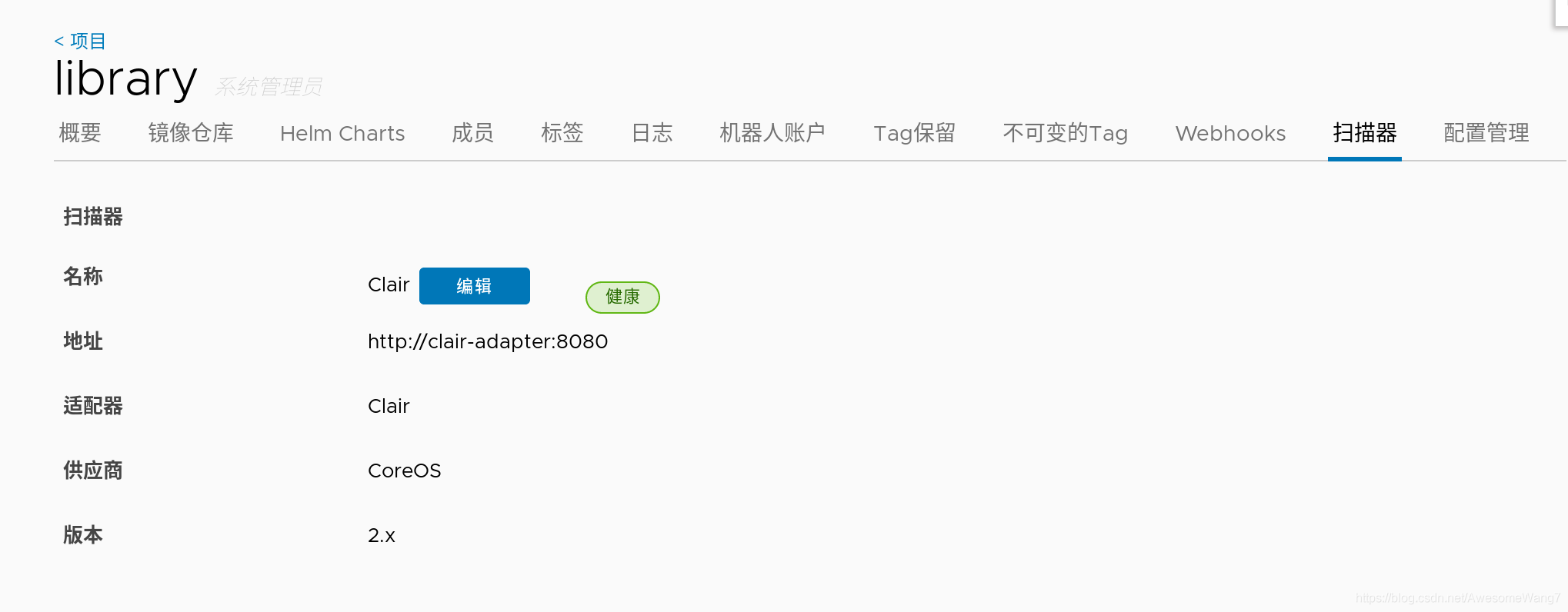
這些都是重新安裝前沒有的
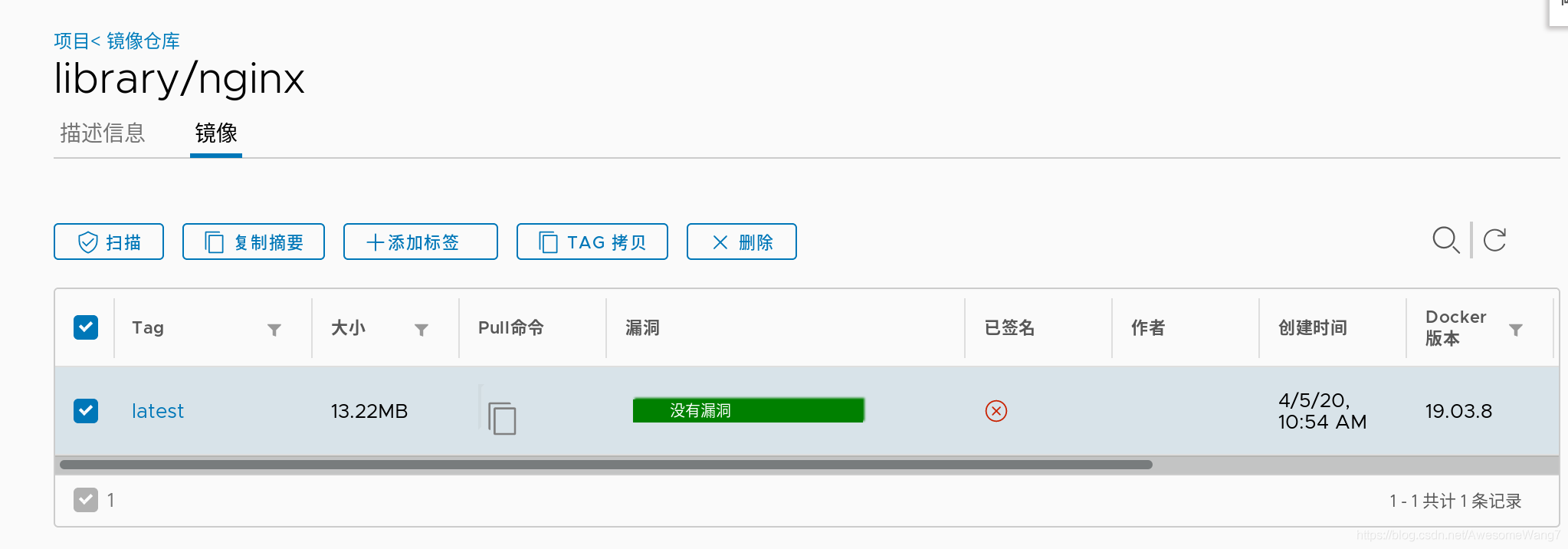
?with-notary --with-clair --with-chartmuseum分別是內容信任,鏡像掃描和charts庫在瀏覽器查看鏡像的信息此時,可以看到鏡像后面都跟有掃描、簽名等信息因為,配置這個目錄時,沒有開啟鏡像掃描和簽名功能,所以,當前顯示鏡像是無掃描和無簽名的
如何自動掃描鏡像?

選中記得保存嘗試一下,重新上傳一個鏡像試試
[root@server1 harbor]# docker tag rhel7:latest reg.westos.org/library/rhel7:latest
這次用rhel7的鏡像,先改一個名字
[root@server1 harbor]# docker push reg.westos.org/library/rhel7:latest The push refers to repository [reg.westos.org/library/rhel7]18af9eb19b5f: Pushed latest: digest: sha256:58cd9120a4194edb0de4377b71bd564953255a1422baa1bbd9cb23d521c6873b size: 528
上傳到harbor
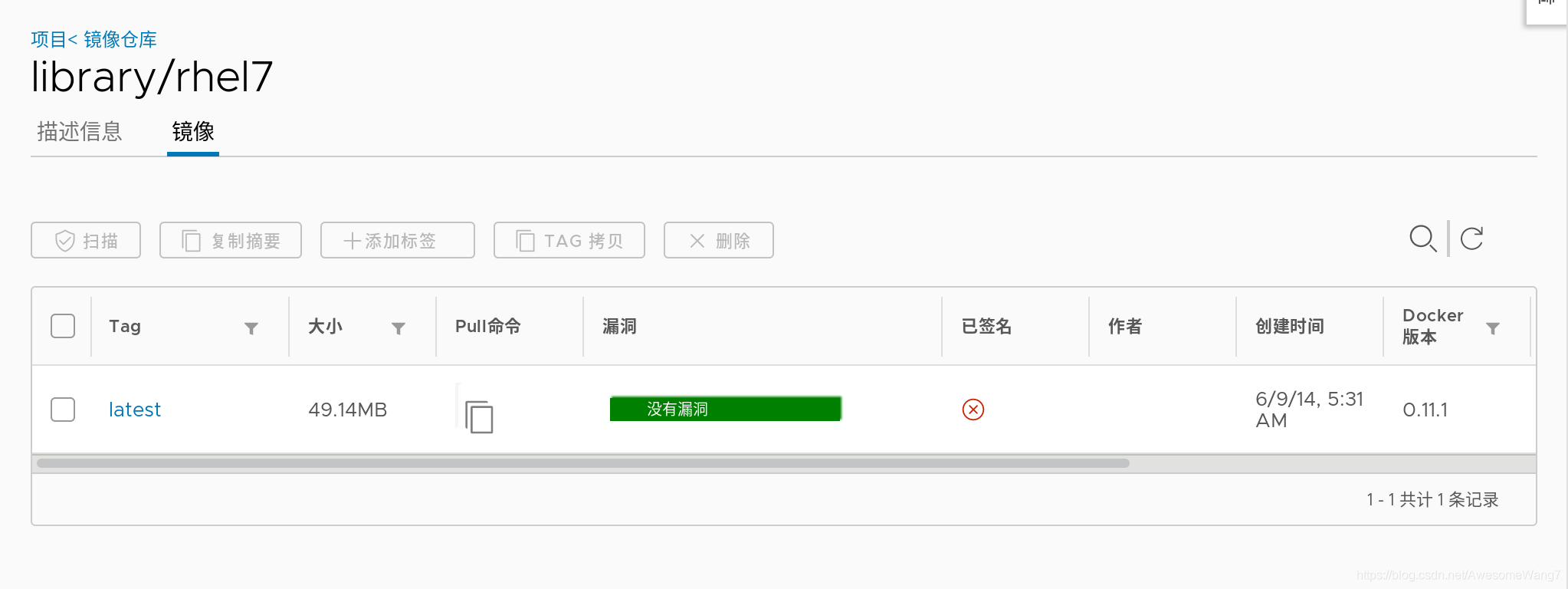
當打開瀏覽器時,發現已經自動掃描過了
如何實現鏡像簽名功能?

當選中了內容信任,此時在server2嘗試拉取剛才上傳的rhel7鏡像
[root@server2 ~]# docker pull rhel7Using default tag: latestError response from daemon: pull access denied for rhel7, repository does not exist or may require ’docker login’: denied: requested access to the resource is denied
如果取消選中內容信任就可以正常拉取因為倉庫開啟了內容信任功能,客戶端只能下載具有簽名的鏡像,而現在倉庫中的debian鏡像沒有簽名,因此,客戶端拉取失敗。雖然拉取harbor倉庫失敗,但是,系統會自動到互聯網上去拉取鏡像(現在處于未聯網的環境,所以,出現以上錯誤)
現在要給信任的鏡像簽名授權先在Web界面刪除之前上傳的,沒有簽名的鏡像在Docker的服務端設置2個環境變量,即可使用內容信任功能為上傳的鏡像進行簽名(1)部署根證書
[root@server1 harbor]# docker-compose ps Name Command StatePorts --------------------------------------------------------------------------------------------------------------------------------------------chartmuseum ./docker-entrypoint.sh Up (healthy) 9999/tcp clair ./docker-entrypoint.sh Up (healthy) 6060/tcp, 6061/tcp clair-adapter /clair-adapter/clair-adapter Up (healthy) 8080/tcp harbor-core /harbor/harbor_core Up (healthy) harbor-db /docker-entrypoint.sh Up (healthy) 5432/tcp harbor-jobservice /harbor/harbor_jobservice ... Up (healthy) harbor-log /bin/sh -c /usr/local/bin/ ... Up (healthy) 127.0.0.1:1514->10514/tcp harbor-portal nginx -g daemon off; Up (healthy) 8080/tcp nginx nginx -g daemon off; Up (healthy) 0.0.0.0:4443->4443/tcp,:::4443->4443/tcp, 0.0.0.0:80->8080/tcp,:::80->8080/tcp, 0.0.0.0:443->8443/tcp,:::443->8443/tcp notary-server /bin/sh -c migrate-patch - ... Up notary-signer /bin/sh -c migrate-patch - ... Up redis redis-server /etc/redis.conf Up (healthy) 6379/tcp registry /home/harbor/entrypoint.sh Up (healthy) 5000/tcp registryctl /home/harbor/start.sh Up (healthy)
4443端口就是用來簽名的
[root@server1 harbor]# export DOCKER_CONTENT_TRUST=1[root@server1 harbor]# export DOCKER_CONTENT_TRUST_SERVER=https://reg.westos.org:4443
(2)啟用docker內容信任
[root@server1 harbor]# docker push reg.westos.org/library/nginx:latestThe push refers to repository [reg.westos.org/library/nginx]3bd8699f28ba: Layer already exists 1d3b68b6972f: Layer already exists de1602ca36c9: Layer already exists latest: digest: sha256:5ea5a786e978abd8e6e0b6c0f37f7271be19c40d6b8247b1d9dae70c1fbab9eb size: 949Signing and pushing trust metadataError: error contacting notary server: x509: certificate signed by unknown authority
latest一定要加,這表明了版本的更新(3)重新上傳報錯了,沒有證書在隱藏目錄.docker中,創建證書目錄tls,進入該目錄后,創建和容器名稱相同的目錄reg.westos.org:4443。復制之前生成好的證書到該目錄中
[root@server1 ~]# cd .docker/[root@server1 .docker]# lsconfig.json trust[root@server1 .docker]# mkdir tls[root@server1 .docker]# cd tls/[root@server1 tls]# mkdir reg.westos.org:4443[root@server1 tls]# cd reg.westos.org:4443/[root@server1 reg.westos.org:4443]# cp /docker /.autorelabel data/ etc/ lib64/opt/ run/ sys/ var/ bin/ dev/ home/ media/proc/ sbin/ tmp/ boot/ dockerlib/ mnt/ root/ srv/ usr/ [root@server1 reg.westos.org:4443]# cp /root/data/certs/westos.org.crt ca.crt[root@server1 reg.westos.org:4443]# lsca.crt
(4)重新上傳試試
[root@server1 harbor]# docker push reg.westos.org/library/nginx:latest The push refers to repository [reg.westos.org/library/nginx]3bd8699f28ba: Layer already exists 1d3b68b6972f: Layer already exists de1602ca36c9: Layer already exists latest: digest: sha256:5ea5a786e978abd8e6e0b6c0f37f7271be19c40d6b8247b1d9dae70c1fbab9eb size: 949Signing and pushing trust metadataYou are about to create a new root signing key passphrase. This passphrasewill be used to protect the most sensitive key in your signing system. Pleasechoose a long, complex passphrase and be careful to keep the password and thekey file itself secure and backed up. It is highly recommended that you use apassword manager to generate the passphrase and keep it safe. There will be noway to recover this key. You can find the key in your config directory.Enter passphrase for new root key with ID dbac0cb: Passphrase is too short. Please use a password manager to generate and store a good random passphrase.Enter passphrase for new root key with ID dbac0cb: Passphrase is too short. Please use a password manager to generate and store a good random passphrase.Enter passphrase for new root key with ID dbac0cb: Passphrase is too short. Please use a password manager to generate and store a good random passphrase.Enter passphrase for new root key with ID dbac0cb: Passphrase is too short. Please use a password manager to generate and store a good random passphrase.Enter passphrase for new root key with ID dbac0cb: Repeat passphrase for new root key with ID dbac0cb: Enter passphrase for new repository key with ID a868e96: Repeat passphrase for new repository key with ID a868e96: Finished initializing 'reg.westos.org/library/nginx'Successfully signed reg.westos.org/library/nginx:latest
解決問題之后,服務端再去上傳鏡像,成功上傳新的鏡像,需要管理員設置根key和倉庫key(注意,每次上傳鏡像的不同版本時,只需要輸入對應的倉庫key,不需要輸入根key)設定好之后,去Web界面查看,發現上傳的鏡像的簽名處顯示成功
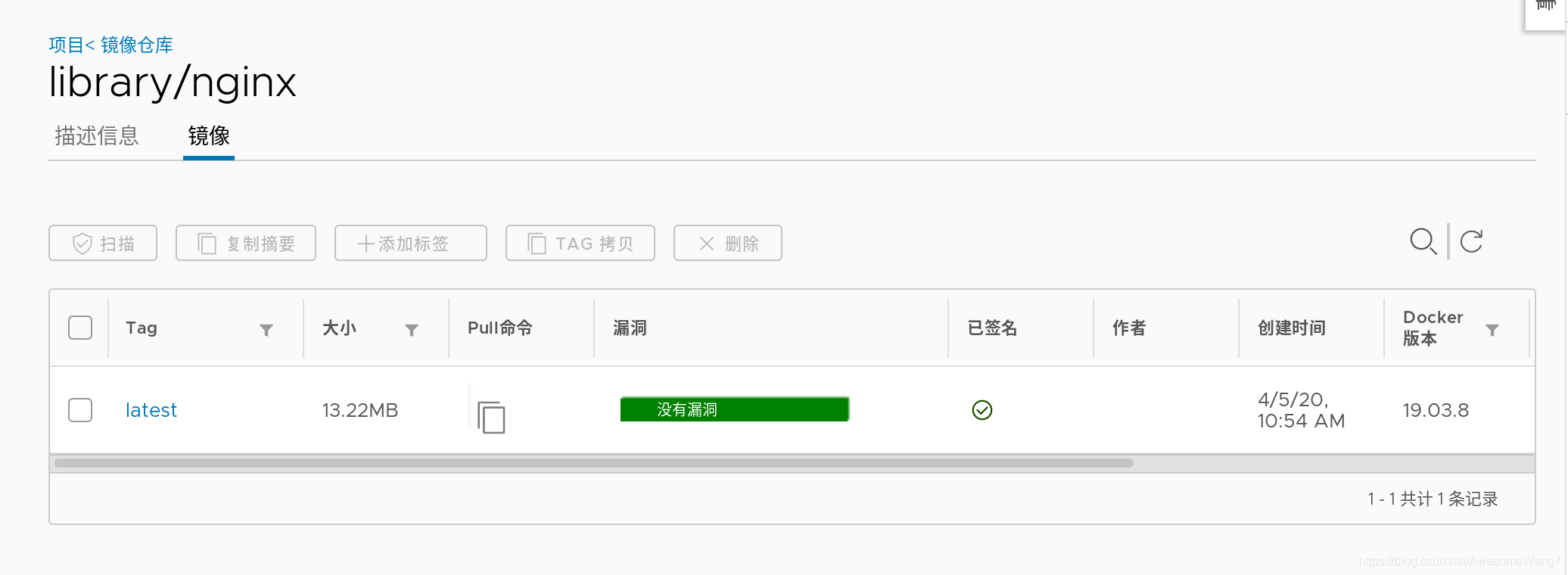
已簽名,一定要加latest
[root@server2 ~]# docker pull nginxUsing default tag: latestlatest: Pulling from library/nginxcfb92865f5ba: Pull complete 8dd350b5e0d5: Pull complete 15157df2751c: Pull complete Digest: sha256:5ea5a786e978abd8e6e0b6c0f37f7271be19c40d6b8247b1d9dae70c1fbab9ebStatus: Downloaded newer image for nginx:latestdocker.io/library/nginx:latest
在server2拉取已簽名的鏡像沒有問題,如果未簽名還開啟了內容信任,就還是不行再次試試可行性,把2048先從harbor刪掉,然后server2也刪除之前下載的2048鏡像,重新拉取,報錯
[root@server2 ~]# docker pull game2048Using default tag: latestError response from daemon: pull access denied for game2048, repository does not exist or may require ’docker login’: denied: requested access to the resource is denied
然后server1重新push2048
[root@server1 harbor]# docker push reg.westos.org/library/game2048:latest The push refers to repository [reg.westos.org/library/game2048]88fca8ae768a: Layer already exists 6d7504772167: Layer already exists 192e9fad2abc: Layer already exists 36e9226e74f8: Layer already exists 011b303988d2: Layer already exists latest: digest: sha256:8a34fb9cb168c420604b6e5d32ca6d412cb0d533a826b313b190535c03fe9390 size: 1364Signing and pushing trust metadataEnter passphrase for root key with ID dbac0cb: Enter passphrase for new repository key with ID 18c8514: Repeat passphrase for new repository key with ID 18c8514: Finished initializing 'reg.westos.org/library/game2048'Successfully signed reg.westos.org/library/game2048:latest
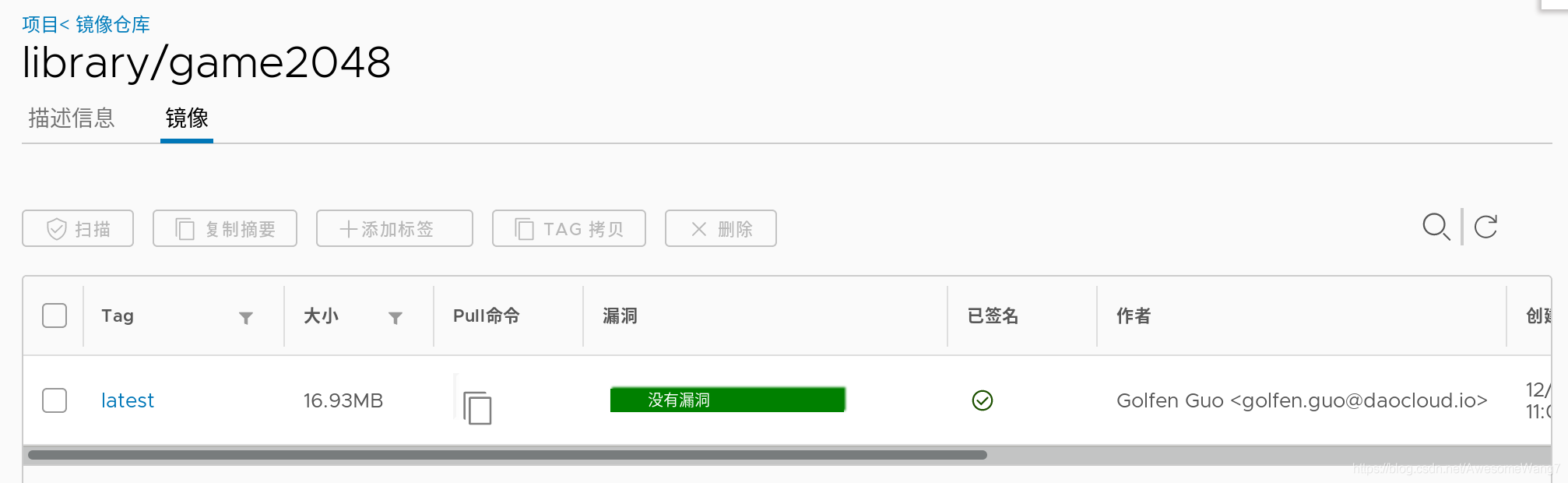
已經簽名,此時server2再次pull
[root@server2 ~]# docker pull game2048Using default tag: latestlatest: Pulling from library/game2048534e72e7cedc: Pull complete f62e2f6dfeef: Pull complete fe7db6293242: Pull complete 3f120f6a2bf8: Pull complete 4ba4e6930ea5: Pull complete Digest: sha256:8a34fb9cb168c420604b6e5d32ca6d412cb0d533a826b313b190535c03fe9390Status: Downloaded newer image for game2048:latestdocker.io/library/game2048:latest
done
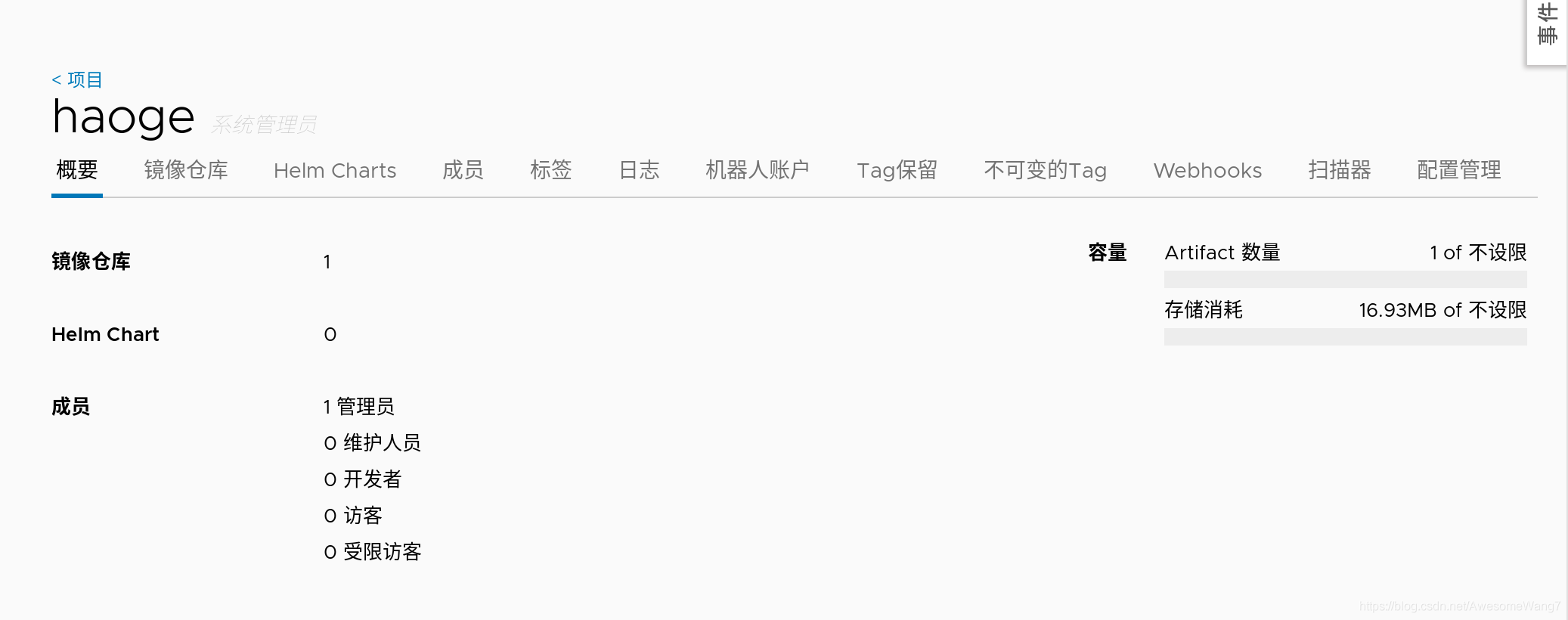
4.guest用戶訪問未公開倉庫(1)新建一個項目
[root@server1 harbor]# export DOCKER_CONTENT_TRUST=0
把內容信任關閉掉,不然會麻煩
[root@server1 harbor]# docker tag reg.westos.org/library/game2048:latest reg.westos.org/haoge/game2048:latest
[root@server1 harbor]# docker push reg.westos.org/haoge/game2048
給haoge這個新項目重新上傳一個2048鏡像

[root@server2 ~]# docker pull reg.westos.org/haoge/game2048:latestError response from daemon: pull access denied for reg.westos.org/haoge/game2048, repository does not exist or may require ’docker login’: denied: requested access to the resource is denied
server2拉取haoge下的2048,報錯了,需要login
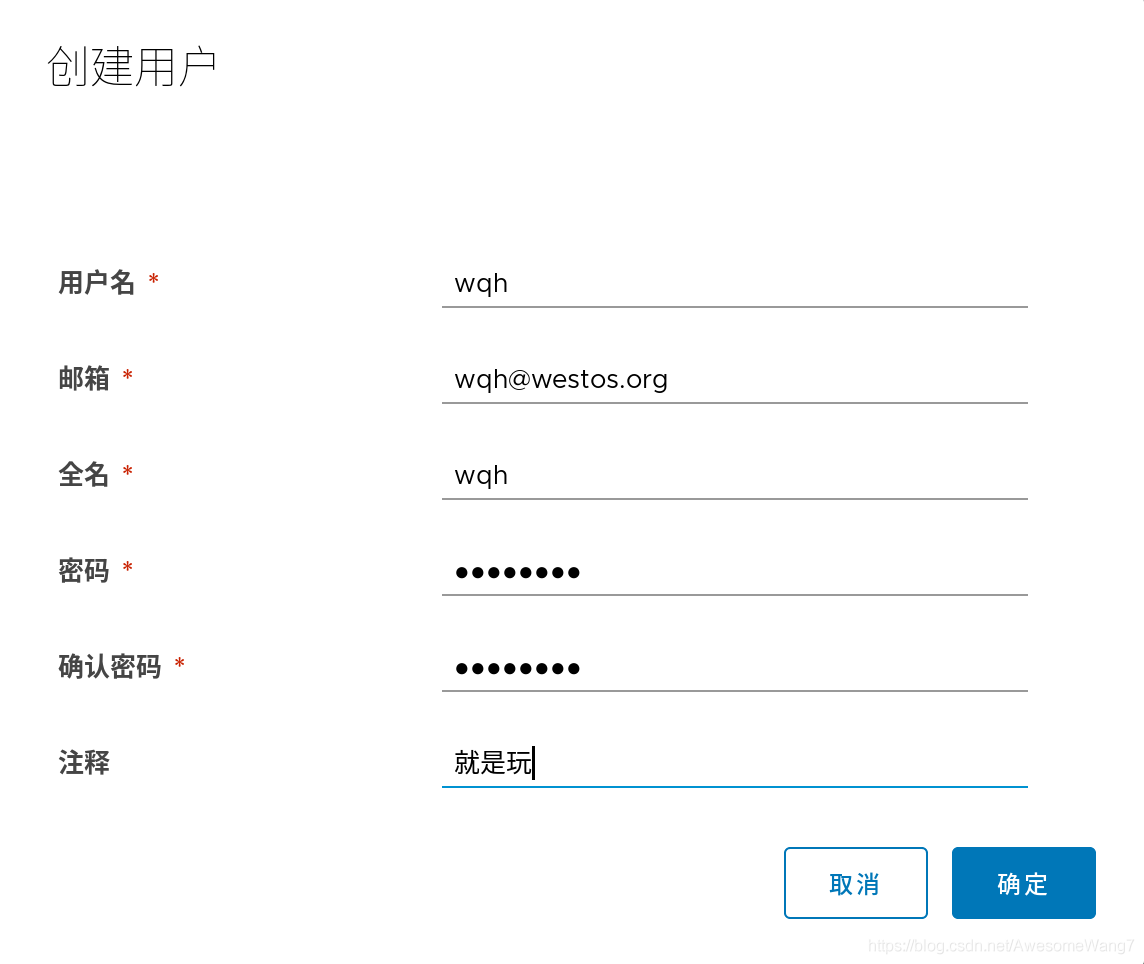
新建一個用戶
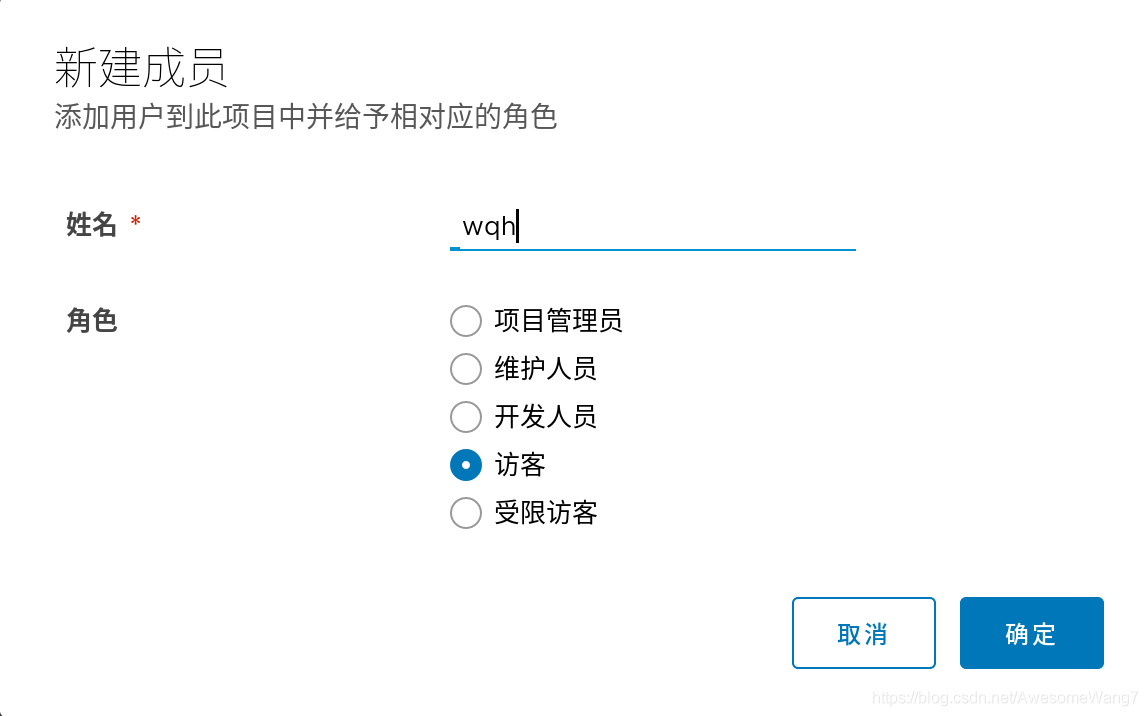
在haoge項目里把wqh這個用戶給一個訪客身份
[root@server2 ~]# docker login reg.westos.orgUsername: wqhPassword: WARNING! Your password will be stored unencrypted in /root/.docker/config.json.Configure a credential helper to remove this warning. Seehttps://docs.docker.com/engine/reference/commandline/login/#credentials-storeLogin Succeeded
server2登錄wqh再次拉取
[root@server2 ~]# docker pull reg.westos.org/haoge/game2048:latestlatest: Pulling from haoge/game2048Digest: sha256:8a34fb9cb168c420604b6e5d32ca6d412cb0d533a826b313b190535c03fe9390Status: Downloaded newer image for reg.westos.org/haoge/game2048:latestreg.westos.org/haoge/game2048:latest[root@server2 ~]# docker images REPOSITORY TAG IMAGE ID CREATED SIZEnginx latest 2560dbd4ee1e 14 months ago 31.1MBgame2048latest 19299002fdbe 4 years ago 55.5MBreg.westos.org/haoge/game2048 latest 19299002fdbe 4 years ago 55.5MB
沒問題但是push是不可以的,因為訪客是沒有權限的
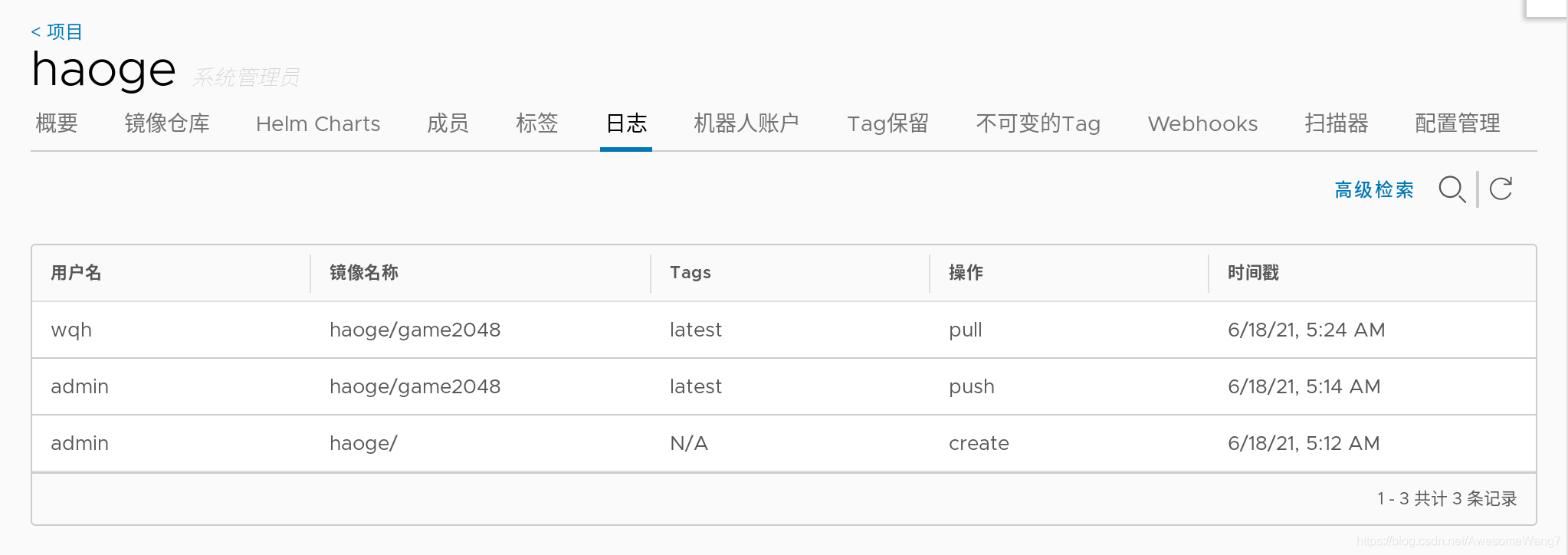
日志可以看到剛才wqh拉去了一個鏡像最后:去掉鏡像掃描和簽名功能,這些加快磁盤的消耗(掃描加快磁盤的消耗)(之后的實驗不需要鏡像掃描和簽名)
[root@server1 harbor]# docker-compose stopStopping harbor-jobservice ... doneStopping nginx ... doneStopping notary-server ... doneStopping clair-adapter ... doneStopping notary-signer ... doneStopping clair ... doneStopping harbor-core ... doneStopping chartmuseum ... doneStopping harbor-portal ... doneStopping redis ... doneStopping registryctl ... doneStopping harbor-db ... doneStopping registry ... doneStopping harbor-log... done[root@server1 harbor]# docker-compose rmGoing to remove harbor-jobservice, nginx, notary-server, clair-adapter, notary-signer, clair, harbor-core, chartmuseum, harbor-portal, redis, registryctl, harbor-db, registry, harbor-logAre you sure? [yN] yRemoving harbor-jobservice ... doneRemoving nginx ... doneRemoving notary-server ... doneRemoving clair-adapter ... doneRemoving notary-signer ... doneRemoving clair ... doneRemoving harbor-core ... doneRemoving chartmuseum ... doneRemoving harbor-portal ... doneRemoving redis ... doneRemoving registryctl ... doneRemoving harbor-db ... doneRemoving registry ... doneRemoving harbor-log... done[root@server1 harbor]# ./install.sh --with-chartmuseum [Step 0]: checking if docker is installed ...Note: docker version: 19.03.15[Step 1]: checking docker-compose is installed ...Note: docker-compose version: 1.27.0[Step 2]: loading Harbor images ...Loaded image: goharbor/clair-adapter-photon:v1.0.1-v1.10.1Loaded image: goharbor/harbor-jobservice:v1.10.1Loaded image: goharbor/redis-photon:v1.10.1Loaded image: goharbor/notary-server-photon:v0.6.1-v1.10.1Loaded image: goharbor/clair-photon:v2.1.1-v1.10.1Loaded image: goharbor/harbor-log:v1.10.1Loaded image: goharbor/registry-photon:v2.7.1-patch-2819-2553-v1.10.1Loaded image: goharbor/notary-signer-photon:v0.6.1-v1.10.1Loaded image: goharbor/chartmuseum-photon:v0.9.0-v1.10.1Loaded image: goharbor/harbor-registryctl:v1.10.1Loaded image: goharbor/nginx-photon:v1.10.1Loaded image: goharbor/harbor-migrator:v1.10.1Loaded image: goharbor/prepare:v1.10.1Loaded image: goharbor/harbor-portal:v1.10.1Loaded image: goharbor/harbor-core:v1.10.1Loaded image: goharbor/harbor-db:v1.10.1[Step 3]: preparing environment ...[Step 4]: preparing harbor configs ...prepare base dir is set to /mnt/harborClearing the configuration file: /config/log/logrotate.confClearing the configuration file: /config/log/rsyslog_docker.confClearing the configuration file: /config/nginx/conf.d/notary.upstream.confClearing the configuration file: /config/nginx/conf.d/notary.server.confClearing the configuration file: /config/nginx/nginx.confClearing the configuration file: /config/core/envClearing the configuration file: /config/core/app.confClearing the configuration file: /config/registry/config.ymlClearing the configuration file: /config/registry/root.crtClearing the configuration file: /config/registryctl/envClearing the configuration file: /config/registryctl/config.ymlClearing the configuration file: /config/db/envClearing the configuration file: /config/jobservice/envClearing the configuration file: /config/jobservice/config.ymlClearing the configuration file: /config/notary/server-config.postgres.jsonClearing the configuration file: /config/notary/server_envClearing the configuration file: /config/notary/signer_envClearing the configuration file: /config/notary/signer-config.postgres.jsonClearing the configuration file: /config/notary/notary-signer.keyClearing the configuration file: /config/notary/notary-signer.crtClearing the configuration file: /config/notary/notary-signer-ca.crtClearing the configuration file: /config/notary/root.crtClearing the configuration file: /config/clair/postgresql-init.d/README.mdClearing the configuration file: /config/clair/postgres_envClearing the configuration file: /config/clair/config.yamlClearing the configuration file: /config/clair/clair_envClearing the configuration file: /config/clair-adapter/envClearing the configuration file: /config/chartserver/envGenerated configuration file: /config/log/logrotate.confGenerated configuration file: /config/log/rsyslog_docker.confGenerated configuration file: /config/nginx/nginx.confGenerated configuration file: /config/core/envGenerated configuration file: /config/core/app.confGenerated configuration file: /config/registry/config.ymlGenerated configuration file: /config/registryctl/envGenerated configuration file: /config/db/envGenerated configuration file: /config/jobservice/envGenerated configuration file: /config/jobservice/config.ymlloaded secret from file: /secret/keys/secretkeyGenerated configuration file: /config/chartserver/envGenerated configuration file: /compose_location/docker-compose.ymlClean up the input dir[Step 5]: starting Harbor ...Creating harbor-log ... doneCreating harbor-portal ... doneCreating registryctl ... doneCreating harbor-db ... doneCreating redis ... doneCreating registry ... doneCreating chartmuseum ... doneCreating harbor-core ... doneCreating nginx ... doneCreating harbor-jobservice ... done✔ ----Harbor has been installed and started successfully.----[root@server1 harbor]# docker-compose ps Name Command StatePorts --------------------------------------------------------------------------------------------------------------------------------------------chartmuseum ./docker-entrypoint.sh Up (health: starting) 9999/tcp harbor-core /harbor/harbor_core Up (health: starting) harbor-db /docker-entrypoint.sh Up (health: starting) 5432/tcp harbor-jobservice /harbor/harbor_jobservice ... Up (health: starting) harbor-log /bin/sh -c /usr/local/bin/ ... Up (health: starting) 127.0.0.1:1514->10514/tcp harbor-portal nginx -g daemon off; Up (health: starting) 8080/tcp nginx nginx -g daemon off; Up (health: starting) 0.0.0.0:80->8080/tcp,:::80->8080/tcp, 0.0.0.0:443->8443/tcp,:::443->8443/tcp redis redis-server /etc/redis.conf Up (health: starting) 6379/tcp registry /home/harbor/entrypoint.sh Up (health: starting) 5000/tcp registryctl /home/harbor/start.sh Up (health: starting)
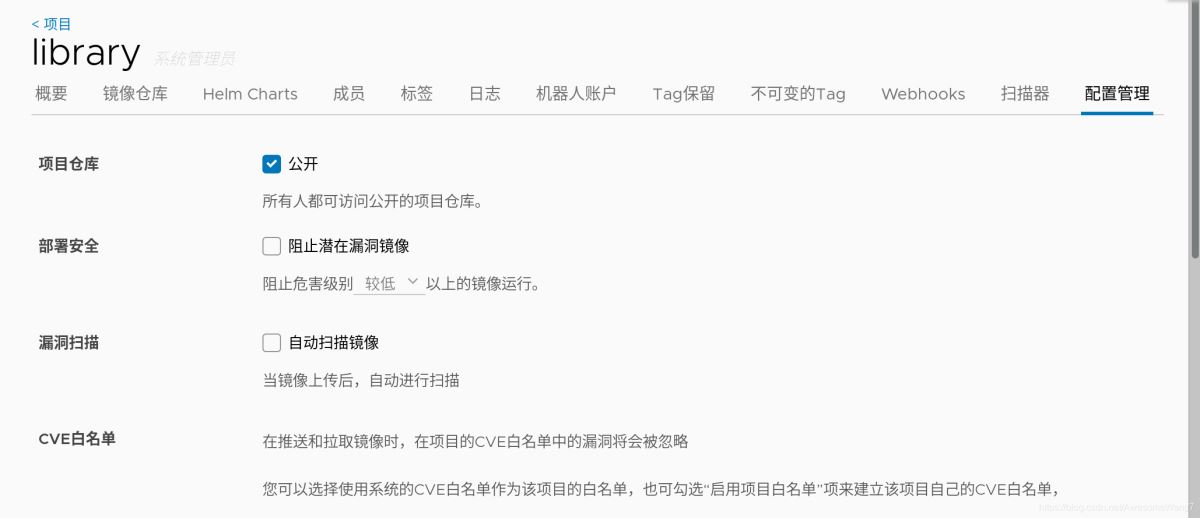
最終效果
以上就是docker5 全功能harbor的詳細內容,更多關于docker harbor的資料請關注好吧啦網其它相關文章!
相關文章:
 網公網安備
網公網安備